
Operation Guide
Top Page
The instructions first describe the layout for devices with wide screens such as PCs and tablets. Please also see here for smartphones.
A language switch button is located at the top of the homepage and main pages.
On the left side, there is a menu with links to main content.
Additionally, at the bottom of the page, you will find the "Operation Guide" (this page) for this digital archive, so please take a moment to read it.
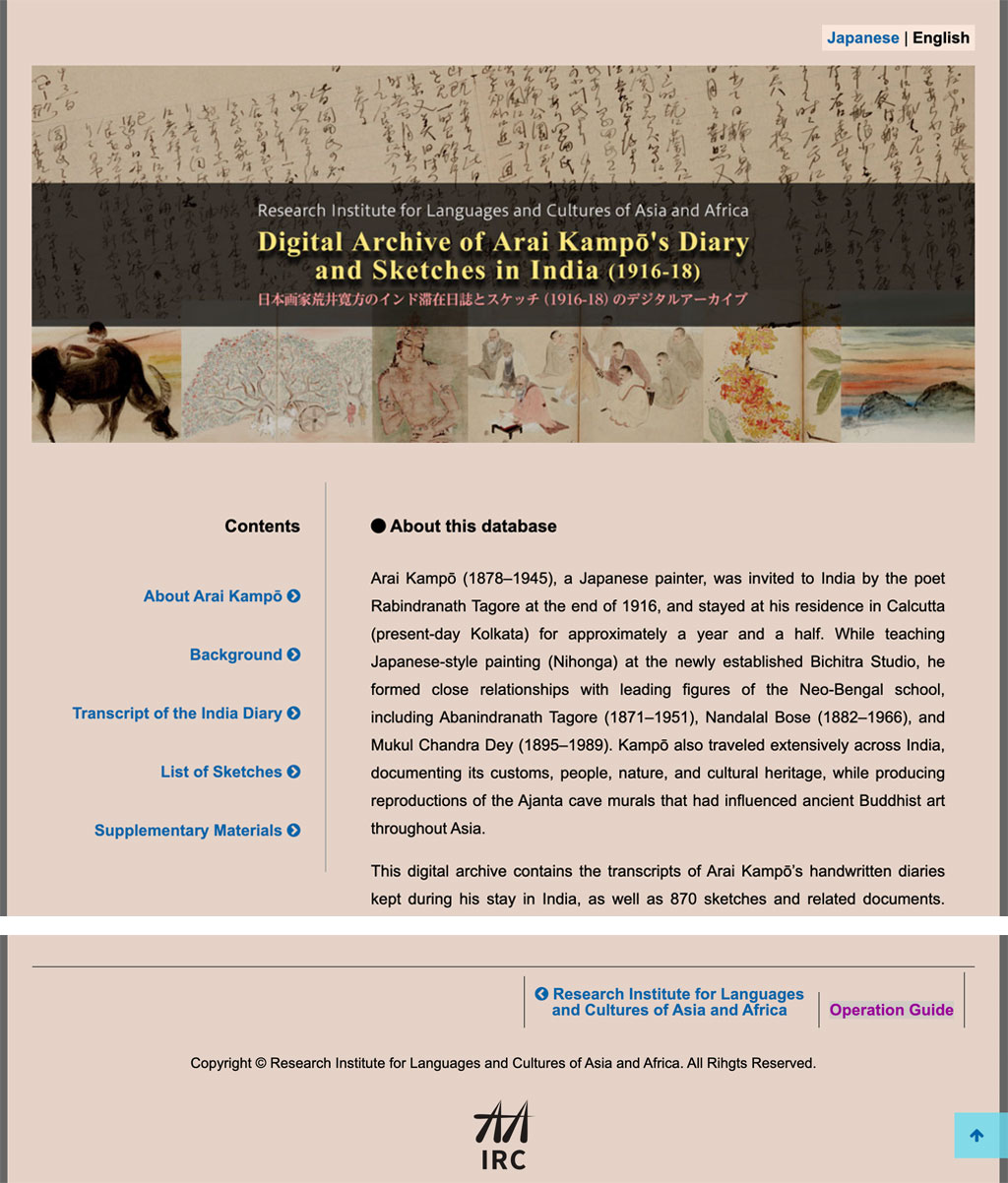
Image List
This example explains the case when you proceed to "Sketch Image List" from the top page.
There are 18 sketchbooks, and you can navigate to the sketchbook you wish to view using the previous/next buttons at the top and the selector.
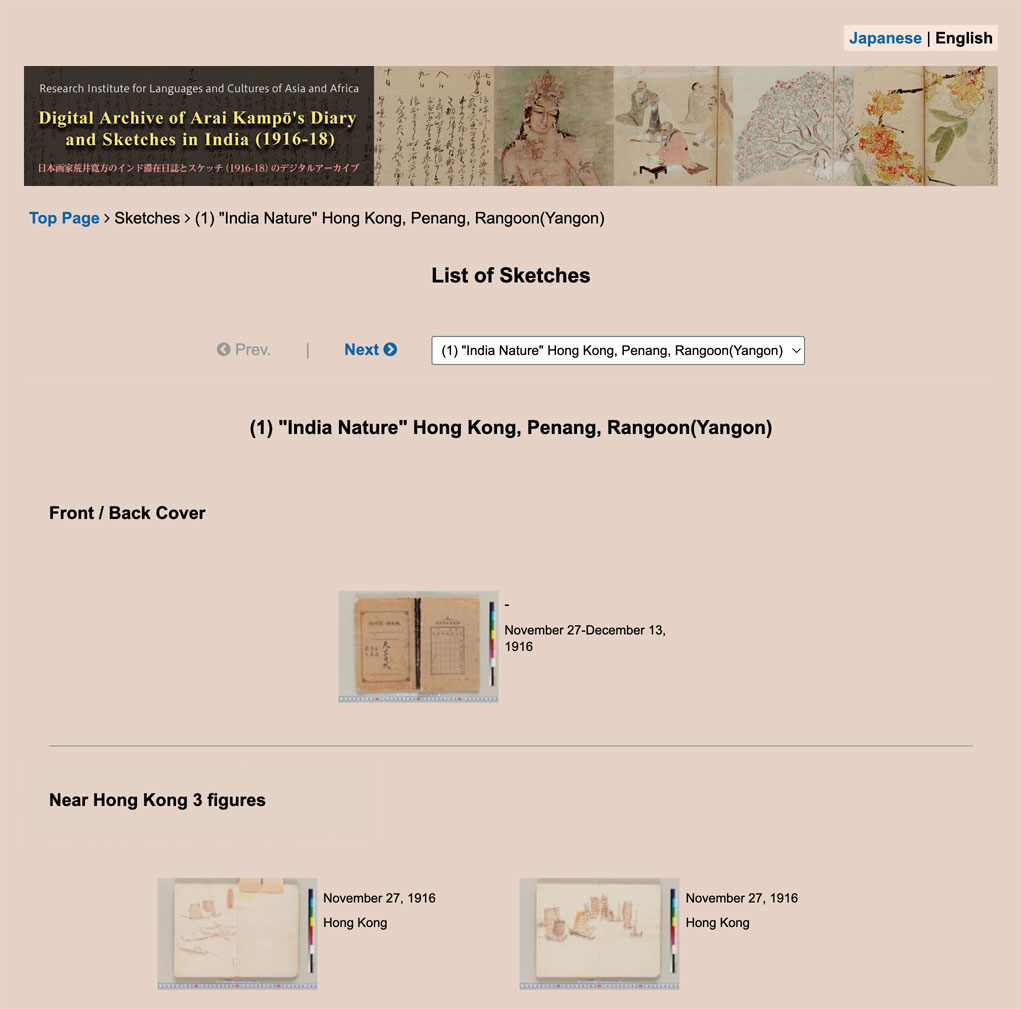 Clicking on a thumbnail image in the list page will switch to an image slide display starting from that image.
Similar image lists are available under "Related Materials" with links to journals (images), postcards, photographs, etc.
Image Slide Operations
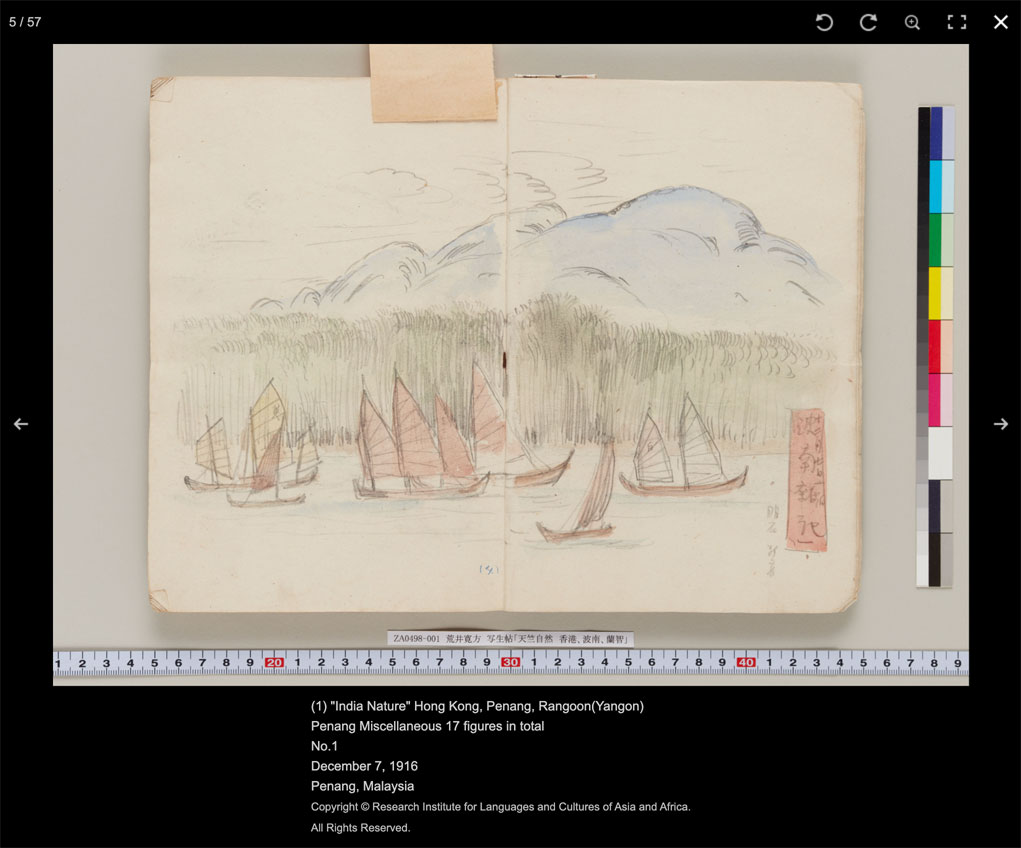
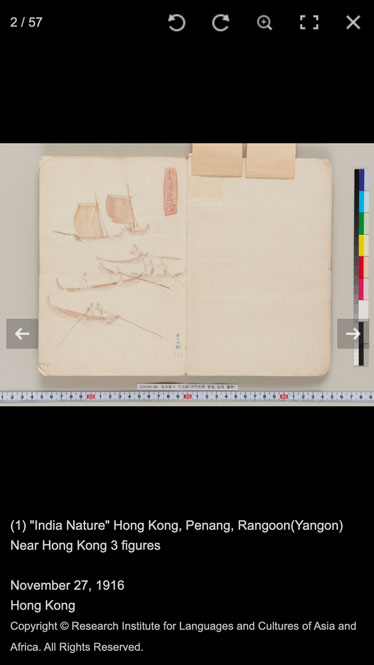
When you place your mouse on the screen, the caption (bottom) and function tools (upper right) will appear. On the left and right sides, there are navigation buttons to move between photos. You can also navigate between photos using the arrow keys on your keyboard. Moving backward from the first image will display the last one.
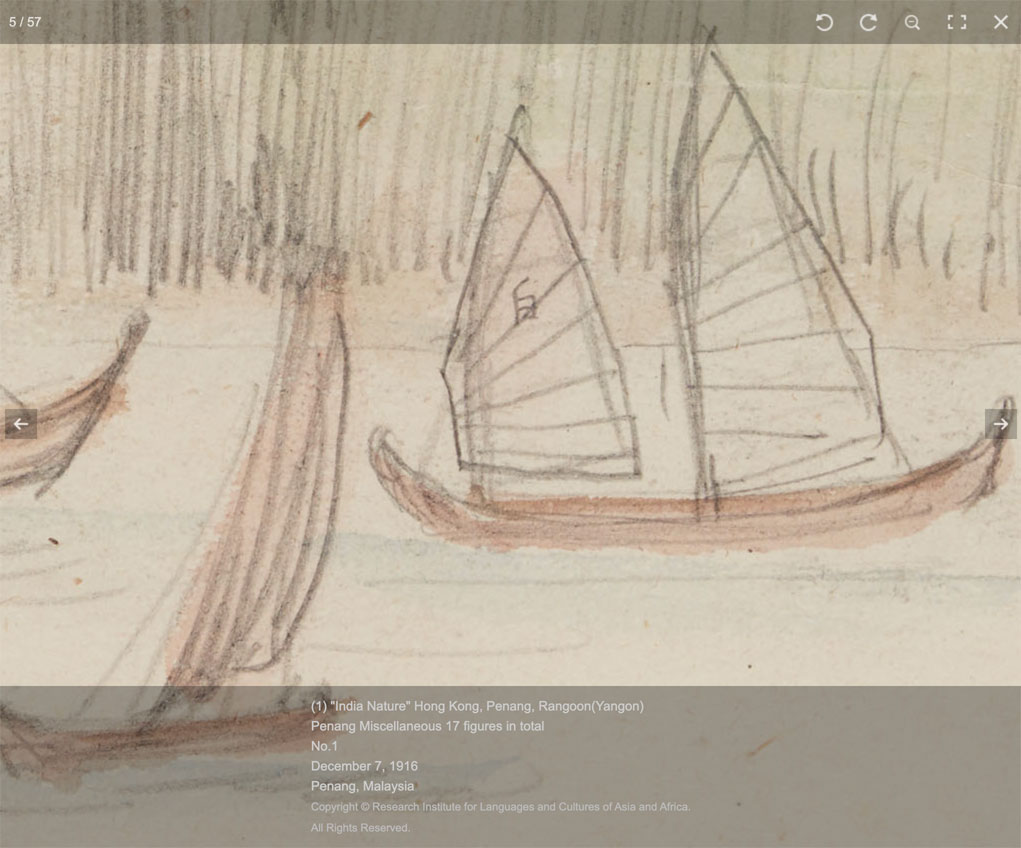
 Clicking on the screen will zoom in to display that location (or nearby). Clicking again will return to the original full display. When rotation is possible, the display position may change if you rotate while zoomed in, so please return to the full view before operating.
 This is an enlarged view of the function tools. The rightmost button is the close button. When in full display mode, the photo slide can also be closed by dragging the mouse up or down or by pressing the Escape key on the keyboard. The rotation button is not displayed for materials that do not require it.

Display on Smartphones
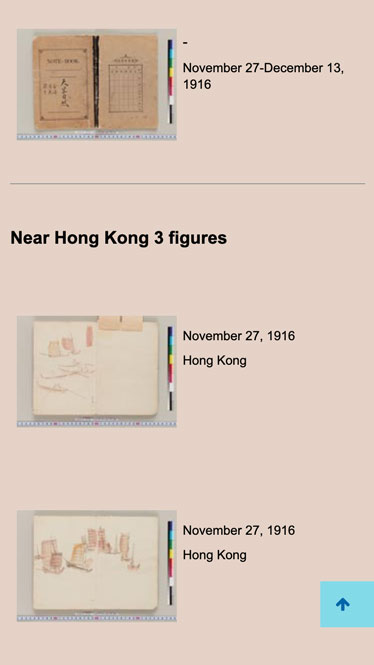
Menus, lists, images, etc. will be arranged in a layout suitable for smartphones. The image viewer (as with tablets) has a user interface suitable for touch operations.
Display Environment
Please use the latest version of your web browser. JavaScript and CSS should be enabled.
| PC | Windows, macOS Edge, Chrome, Firefox, Safari |
| iPad | iPadOS Safari, Chrome |
| iPhone | iOS Safari, Chrome |
| Android | Chrome |